If you want to work seriously with Adobe Commerce or Open Source, a reliable local setup is the first skill to build. This Magento 2 installation guide is written for developers who want a working environment they can actually use for module development, theme work, debugging, and learning the platform without fighting the server every hour.
Magento 2 is not a lightweight app. It expects a proper PHP stack, Composer, a database, Elasticsearch or OpenSearch depending on version, and enough system resources to do real work. That is why installation is less about clicking through a wizard and more about preparing your machine the right way.
Before you start the Magento 2 installation guide
The biggest mistake beginners make is trying to install Magento 2 on an environment that is technically compatible but practically unstable. You can get through the installer and still end up with broken indexing, failed static content deployment, or cache issues that waste a full afternoon.
For local development, Linux is usually the easiest path. Ubuntu is a common choice because most Magento documentation and community examples assume it. macOS can work well too, especially if you are comfortable with Homebrew and CLI tools. Windows developers usually get the best experience through WSL2 rather than a traditional XAMPP-style setup.
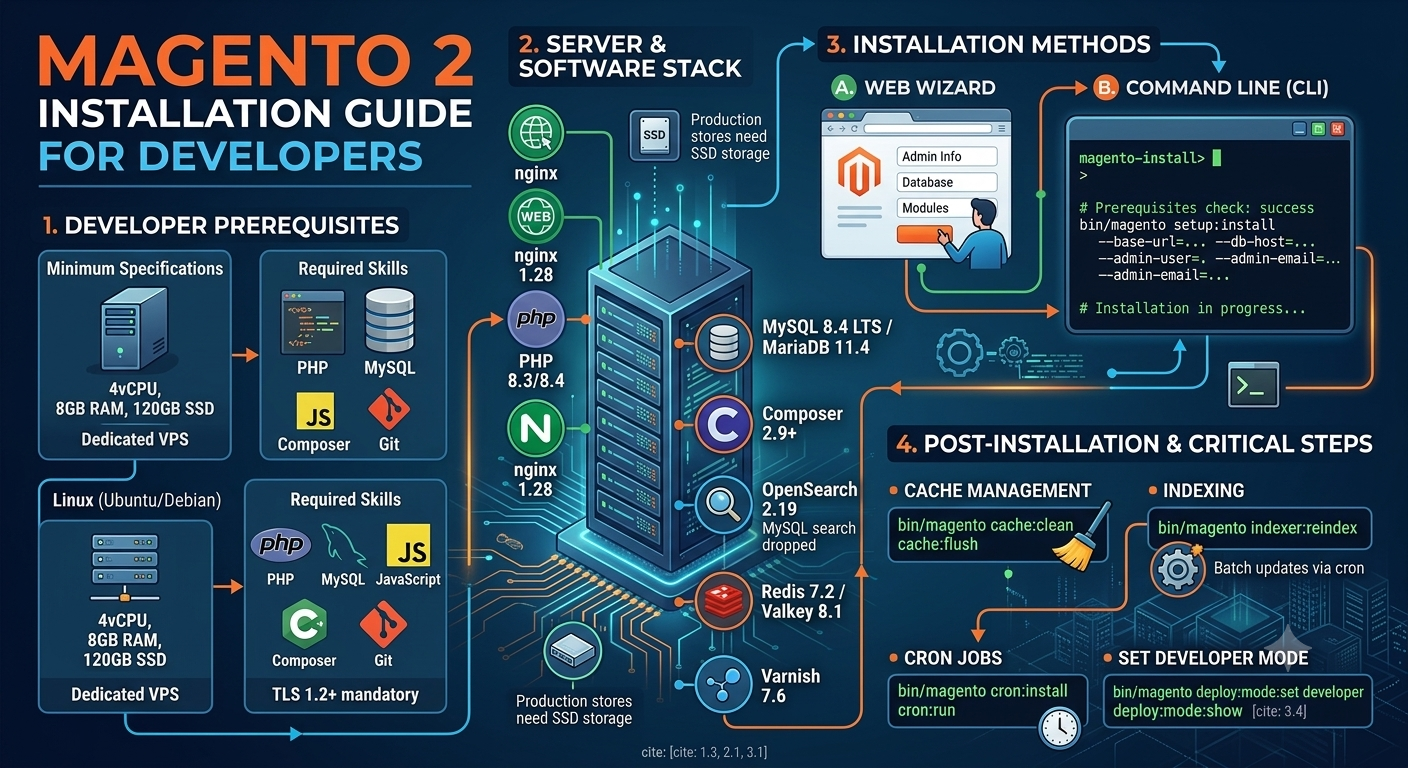
You also need to match your Magento version with supported software versions. That includes PHP, Composer, MySQL or MariaDB, and your search engine service. This is one of those areas where it depends on the project. If you are learning on the latest Open Source release, use the supported versions for that release. If you are joining an existing team, mirror the project stack exactly, even if it is not the newest option.
A practical baseline for a local machine is at least 8 GB of RAM, though 16 GB makes life much easier. Magento can run with less, but performance drops fast once services start competing for memory.
Core tools you need
Before installing Magento, make sure your machine has a working web server stack and command line tools. In most cases, that means Apache or Nginx, PHP with required extensions, MySQL, Composer, and Elasticsearch or OpenSearch. You will also want Git, because Magento development without version control is asking for trouble.
For PHP, pay close attention to extensions. Developers often install PHP itself and forget pieces like bcmath, ctype, dom, gd, intl, mbstring, openssl, pdo_mysql, simplexml, soap, xsl, zip, and sockets. Missing even one extension can stop Composer or the installer.
Composer matters more than people expect because Magento pulls a large dependency tree. If Composer authentication is not configured for Adobe packages, installation can fail before the codebase is fully created. For Open Source installs from public sources, this is less of an issue, but many real-world Magento environments still rely on authenticated package access.
Creating the Magento project
The cleanest way to install Magento 2 is with Composer. That gives you a standard project structure and makes dependency management much easier later when you update packages or add modules.
From your terminal, move to the directory where you keep development projects and create the project with Composer. The exact package source can vary by edition and access method, but the general flow is the same: create the project, enter the new directory, and prepare the environment file if needed.
Once the code is in place, create a database for Magento. Use a dedicated database user if possible instead of root credentials. That is a good habit for local work and an even better habit if you eventually move into staging or production environments.
Next, point your local web server to Magento's public entry point. Depending on your stack, that may mean configuring Apache virtual hosts or an Nginx server block. Some local development tools abstract this away, which is convenient, but it is still worth understanding what is happening underneath. Junior developers who understand host mapping, document roots, and PHP handling tend to ramp up faster on real projects.
Running the Magento installer
This part of the Magento 2 installation guide is where everything comes together. You can use the web-based installer in some environments, but the command line installer is usually better for developers because it is repeatable and easier to troubleshoot.
You will run the setup install command with values for the base URL, database connection, admin user, admin password, search engine settings, and language or currency preferences. You will also define the backend front name, which changes the admin path from the default.
The command succeeds only if your stack is fully ready. If it fails, the error message usually points to one of a few common problems: database credentials are wrong, the search engine service is not running, the base URL is malformed, required PHP extensions are missing, or file permissions are off.
Permissions are especially annoying because they can appear fixed at first and then break during cache generation or static deployment. In local development, keep ownership consistent with the user running your web server or dev process. Avoid random permission changes copied from old forum posts unless you understand what they do.
After installation, run the usual post-install commands. Upgrade the setup if needed, compile dependency injection in environments that require it, deploy static content when necessary, and flush caches. In developer mode, you will often rely less on full static deployment during active coding, but it is still a command you need to know.
Magento 2 installation guide for local development quality
A working install is not the same as a usable development setup. Once Magento loads in the browser and the admin panel works, spend a few more minutes making the environment practical.
Set the application to developer mode. This gives better error visibility and supports a more realistic development workflow. Production mode is important later, but it is not what you want while learning module structure or debugging dependency injection errors.
Make sure cron is configured if you want to test features that rely on scheduled tasks, indexing, or email queues. Many beginners skip cron and then get confused when expected platform behavior never happens.
You should also confirm that reindexing works, cache types are visible in the admin, and the generated directory is being created correctly. If your setup reaches the homepage but fails on indexing or admin actions, treat it as half-installed, not finished.
This is also a good time to install a sample theme or create a very small custom module just to verify your workflow. Nothing exposes setup issues faster than actual development tasks.
Common problems and how to think through them
Magento installation errors can feel random, but most of them trace back to environment mismatch. If Composer fails, think dependency versions, authentication, or PHP extensions. If setup install fails, think services, credentials, or unsupported software versions. If the storefront breaks after install, think cache, generated code, permissions, or base URL problems.
Search engine issues are common because Magento relies on it for catalog functionality. If Elasticsearch or OpenSearch is not running, the installer may stop or the admin may behave unpredictably later. Always verify the service itself, not just the package installation.
Memory limits can also derail setup. Composer may exhaust memory during installation, or PHP may hit limits during compile and static deployment steps. Raising memory temporarily in local development is normal. Ignoring the issue and retrying the same command usually just produces the same failure.
One more practical tip: read the exact error output before changing five things at once. Good developers troubleshoot in controlled steps. Change one variable, rerun the command, and learn from the result. That habit will help you far beyond Magento.
When Docker or prebuilt environments make sense
If you are learning Magento 2 for career growth, you should understand a manual installation at least once. It teaches you how the platform fits together. After that, using Docker-based environments or team-standard local tools can be a smart move because they reduce setup drift.
The trade-off is simple. Manual installs build stronger fundamentals. Containerized installs often get you productive faster and match modern team workflows better. If your goal is job readiness, there is value in knowing both.
For many early-career developers, the best approach is to do one full manual install, document your steps, then move to a repeatable environment for regular practice. That balance gives you both understanding and speed.
Magento has a reputation for being heavy, and that reputation is fair. But once your environment is stable, the platform becomes much easier to learn because you can focus on modules, themes, plugins, layout XML, and data flow instead of basic setup failures. If you are serious about becoming a stronger eCommerce developer, getting this foundation right is time well spent.