Magento is one of the most powerful eCommerce platforms available today, but it is also one of the most complex PHP frameworks to develop. A standard Magento 2 installation contains thousands of PHP classes, XML configuration files, JavaScript components, Knockout templates, layout files, dependency injection configurations, plugins, observers, controllers, models, helpers, repositories, and APIs.
Because of this complexity, developers often spend more time searching for files than actually writing code.
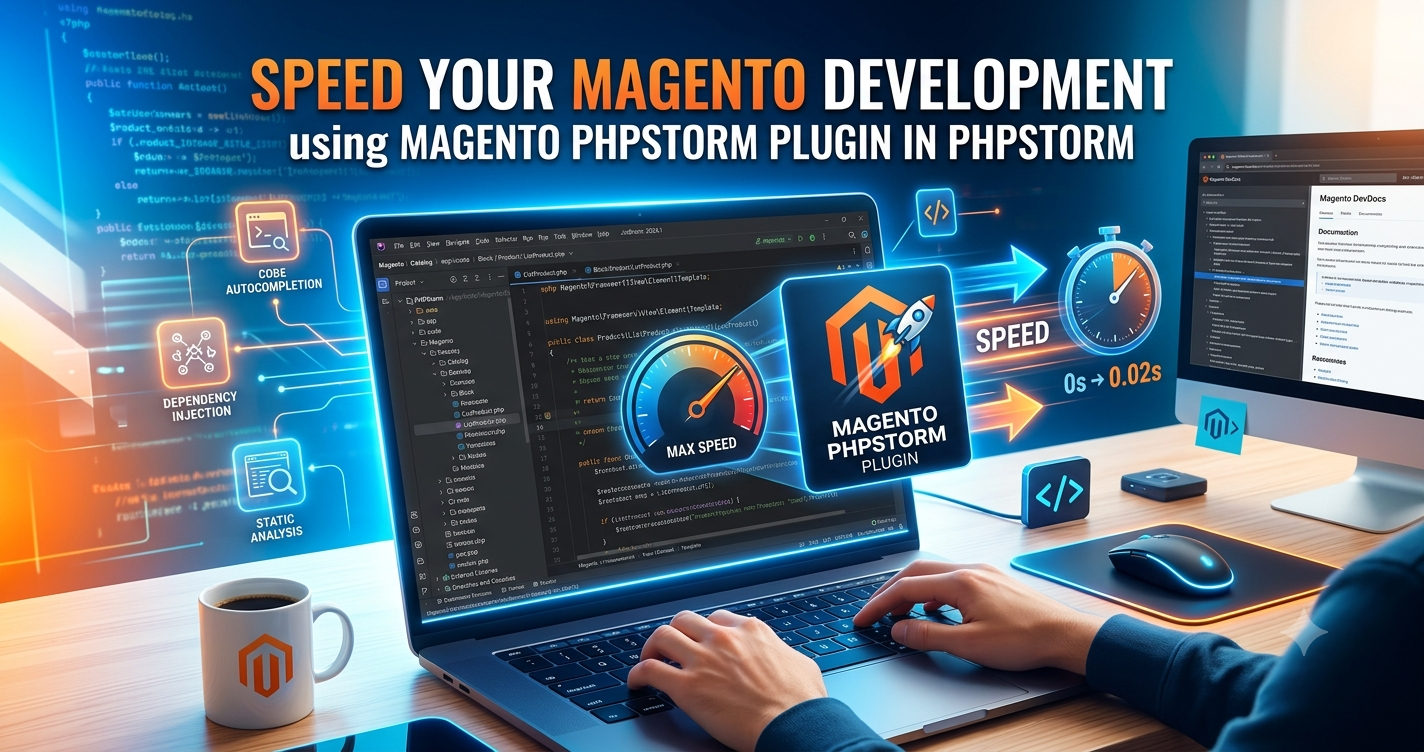
If you're using JetBrains PhpStorm for Magento development, there's a powerful plugin that can significantly improve your productivity—the Magento PhpStorm Plugin.
This plugin adds Magento-specific intelligence to PhpStorm, allowing you to quickly navigate between XML files, PHP classes, JavaScript components, templates, layouts, modules, and much more.
In this guide, you'll learn:
What the Magento PhpStorm Plugin is
Why every Magento developer should use it
Features of the plugin
Step-by-step installation
Configuration guide
How to use it effectively
Productivity tips
Troubleshooting common issues
Whether you're a beginner or an experienced Magento developer, this guide will help you speed up your workflow.
Why Use PhpStorm for Magento Development?
PhpStorm is widely considered one of the best IDEs for PHP development. It provides powerful features such as:
Intelligent code completion
Advanced debugging
Git integration
Code inspections
Refactoring tools
Database management
Docker support
Composer integration
PHPUnit support
REST API testing
When combined with the Magento plugin, PhpStorm becomes even more powerful by understanding Magento's architecture.
Instead of manually locating files across hundreds of directories, the IDE can instantly navigate to the exact class or template you're looking for.
What is the Magento PhpStorm Plugin?
The Magento PhpStorm Plugin is an extension developed for JetBrains PhpStorm that adds Magento-specific functionality to the IDE.
It understands Magento's internal architecture and helps developers navigate complex project structures with ease.
Instead of manually searching through directories, the plugin allows you to jump directly to:
PHP classes
Layout XML files
Templates (.phtml)
UI Components
JavaScript modules
Knockout templates
RequireJS modules
Dependency Injection configurations
Plugins
Observers
Events
Routes
Controllers
This dramatically reduces development time.
Benefits of Using Magento PhpStorm Plugin
Some of the biggest advantages include:
1. Faster Navigation
Jump directly from XML to PHP classes.
2. Better Code Understanding
Understand Magento's dependency injection and module relationships.
3. Improved Productivity
Reduce time spent searching files.
4. Better Refactoring
Rename classes or methods safely.
5. Smarter Autocomplete
Magento-aware code completion improves development speed.
6. Better Debugging
Navigate through the execution flow much faster.
7. Reduced Errors
The IDE can detect invalid references before runtime.
Features of Magento PhpStorm Plugin
Some useful features include:
Magento integration
XML navigation
JavaScript navigation
Template navigation
Layout navigation
Module awareness
Dependency Injection support
Route navigation
Event observer navigation
Plugin navigation
Preference navigation
Factory detection
Virtual types support
RequireJS support
KnockoutJS support
System Requirements
Before installing the plugin, ensure you have:
PhpStorm
Magento 2 installed locally
PHP configured
Composer installed
Project indexed in PhpStorm
How to Install Magento PhpStorm Plugin
Follow these simple steps.
Step 1: Open PhpStorm
Launch your PhpStorm IDE.
Step 2: Open Plugin Manager
Navigate to:
File → SettingsThen select:
PluginsStep 3: Search for Magento Plugin
In the Marketplace search box, search for:
Magento PhpStormYou should see the official Magento plugin in the search results.
Click:
Install
Step 4: Restart PhpStorm
Once installation is complete, PhpStorm will ask you to restart.
Click:
Restart IDE
This enables the plugin.
Configure Magento Integration
After restarting, configure Magento support.
Navigate to:
File
→ Settings
→ PHP
→ Frameworks
You will now notice Magento listed as a supported framework.
Enable Magento Integration
Check the option:
Enable Magento IntegrationSelect Magento Installation Path
Now browse to your Magento installation directory.
Example:
C:\xampp\htdocs\magento2or
/var/www/html/magento2Choose the root folder of your Magento installation.
Verify Magento Version
Once the correct directory is selected, PhpStorm automatically detects your Magento version.
If the version appears correctly, your installation path is valid.
If it does not detect the version:
Verify the selected folder
Ensure Magento is installed correctly
Check file permissions
Confirm composer installation
Click OK
Save your settings.
Wait for Project Indexing
PhpStorm now begins indexing your Magento project.
Magento projects contain thousands of files, so indexing may take several minutes.
You can monitor progress in the bottom-right corner of PhpStorm.
Avoid interrupting the indexing process, as many plugin features depend on a complete index.
Using Magento PhpStorm Plugin
Once indexing is complete, you're ready to use the plugin.
Here are some practical examples.
Navigate XML References
Open any layout XML file.
Click on:
Block class
Template reference
Controller
Layout update
Press:
Ctrl + ClickPhpStorm opens the referenced file instantly.
Navigate JavaScript Files
Magento uses RequireJS extensively.
The plugin allows you to jump directly from XML or template files to the referenced JavaScript module.
This eliminates manually searching through directories.
Open Templates Instantly
Instead of searching for:
app/design/frontendor
vendor/magentoSimply Ctrl + Click on the template reference.
Navigate Dependency Injection
Open:
di.xmlClick on:
Preference
Type
Plugin
Virtual Type
PhpStorm takes you directly to the implementation.
Navigate Routes
Open:
routes.xmlJump directly to the controller class.
Open Controllers
Navigate from routes to controllers with one click.
This is especially useful while debugging frontend requests.
Navigate Plugins
Magento plugins can be difficult to locate manually.
The Magento plugin allows quick navigation between:
Plugin declaration
Target class
Around methods
Before methods
After methods
Event Observers
Click on an observer declaration.
Jump directly to the observer class.
Layout Navigation
Move quickly between:
Layout XML
Block class
Template
UI Component
Productivity Tips
To maximize your productivity:
Use keyboard shortcuts.
Enable automatic imports.
Use code inspections.
Install Git integration.
Configure Xdebug.
Enable Composer support.
Keep indexes updated.
Exclude unnecessary folders from indexing.
Use Live Templates for repetitive code.
Take advantage of Search Everywhere (Shift + Shift).
Common Problems and Solutions
Magento Version Not Detected
Possible causes:
Wrong installation path
Incomplete Magento installation
Missing composer dependencies
Solution:
Select the Magento root directory again.
Plugin Features Not Working
Possible causes:
Indexing incomplete
Plugin disabled
Solution:
Restart PhpStorm and wait until indexing completes.
Navigation Not Working
Possible causes:
Incorrect project structure
Solution:
Re-index the project:
File
→ Invalidate Caches
→ Restart
Best Practices
For the best experience:
Keep PhpStorm updated.
Update the Magento plugin regularly.
Use SSD storage for faster indexing.
Allocate sufficient memory to PhpStorm.
Enable Xdebug only when required.
Use Composer autoload optimization.
Why Every Magento Developer Should Use This Plugin
Whether you're developing:
Custom modules
Payment gateways
Shipping methods
Admin grids
GraphQL APIs
REST APIs
Theme customizations
Checkout modifications
UI Components
KnockoutJS templates
the Magento PhpStorm Plugin saves significant development time by making navigation effortless.
Instead of manually tracing references, you can focus on writing quality code.
Watch the Video Tutorial
If you prefer learning visually, you can watch the complete installation and configuration tutorial on YouTube:
https://www.youtube.com/watch?v=YhBAvMmoAJU
The video walks through the installation process, configuration, and demonstrates how to use the plugin effectively within a real Magento project.
Conclusion
The Magento PhpStorm Plugin is one of the most valuable productivity tools for Magento developers. By enabling Magento-aware navigation, intelligent code assistance, and seamless integration with Magento's architecture, it significantly reduces development time and improves debugging efficiency.
From navigating XML layouts and JavaScript modules to jumping directly into controllers, templates, plugins, observers, and dependency injection configurations, the plugin streamlines everyday development tasks and minimizes manual file searching.
If you're working on Magento 2 projects regularly, installing this plugin is a simple step that can dramatically improve your workflow and coding experience. Combined with PhpStorm's powerful IDE features, it creates a professional development environment that helps you build, debug, and maintain Magento stores more efficiently.
If you found this guide helpful, consider sharing it with your fellow Magento developers and leave a comment with your experience or any additional productivity tips you use in PhpStorm.