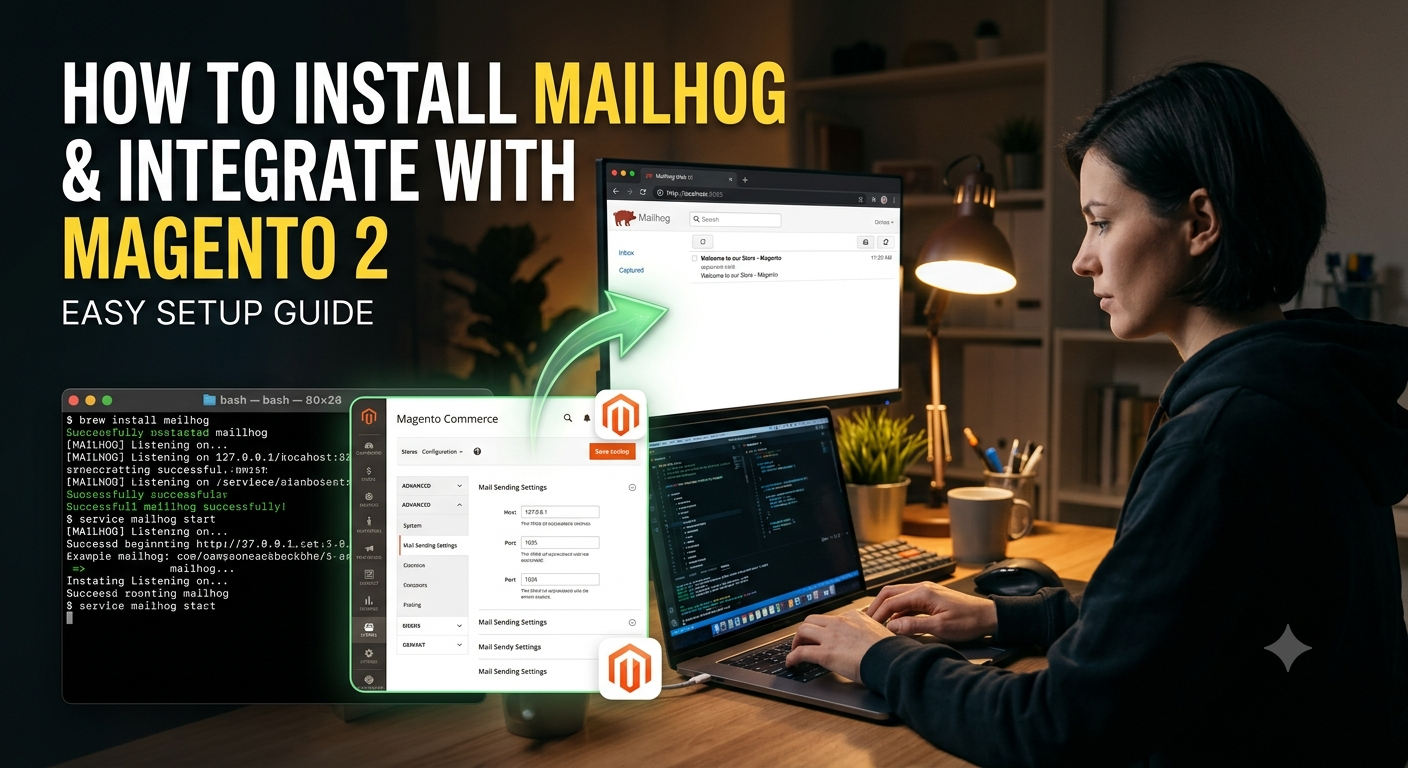
Why MailHog for Magento development
Magento sends transactional emails for orders, invoices, password resets, and newsletter flows. In local/staging environments you should capture those messages instead of emailing real customers. MailHog provides an SMTP sink plus a web UI to inspect messages.
Install MailHog with Docker (recommended)
docker run -d --name mailhog -p 1025:1025 -p 8025:8025 mailhog/mailhog- SMTP:
localhost:1025 - UI:
http://localhost:8025
Binary install (optional)
Download the MailHog release for your OS, place it on your PATH, and run MailHog. Ports match the Docker defaults unless customized.
Configure Magento 2 to use MailHog
- Prefer a Magento SMTP module (or built-in custom SMTP if available in your stack) pointed at
127.0.0.1, port1025, no auth, no TLS for local MailHog. - In Stores → Configuration → Advanced → System → Mail Sending Settings, disable mail in production only when intentional; for local, keep sending enabled so flows execute, but route transport to MailHog.
- Set store email addresses under Store Email Addresses.
- Trigger a test: create an account or place an order in developer mode.
- Open MailHog UI and confirm the message body, headers, and template output.
env.php / transport tips
Some teams configure SMTP via environment-specific config or modules like Mageplaza/MagePal SMTP. Keep credentials empty for MailHog and never commit production SMTP secrets into local overrides.
Troubleshooting
- Nothing arrives: confirm Magento is not set to “Disable Email Communications”.
- Connection refused: ensure port 1025 is published and not blocked.
- HTML broken: inspect template locale and directive processing in Magento email templates.
Security note
Never expose MailHog ports on public servers. It is a development tool, not a production mail relay.